How to change DNS server settings on MERCUSYS WiFi Router or 5G/4G Router
Introduction
You can change DNS server settings on your MERCUSYS router to use a preferred DNS provider or resolve network issues in a specific environment. If your Internet connection seems slow or unstable, updating your DNS settings is a good first step. This guide covers how to change DNS settings on MERCUSYS WiFi Router or 5G/4G Router via the web management page.
If you have a MERCUSYS Halo system, see How to change DNS server settings on my Halo
Configuration
Scenario 1: For WiFi Routers
Step 1. Connect your computer to the MERCUSYS WiFi Router, then open a browser and visit mwlogin.net or 192.168.1.1 to log in to the router's web management page.
For details, please refer to How to log in to the web management page of MERCUSYS Wireless Router
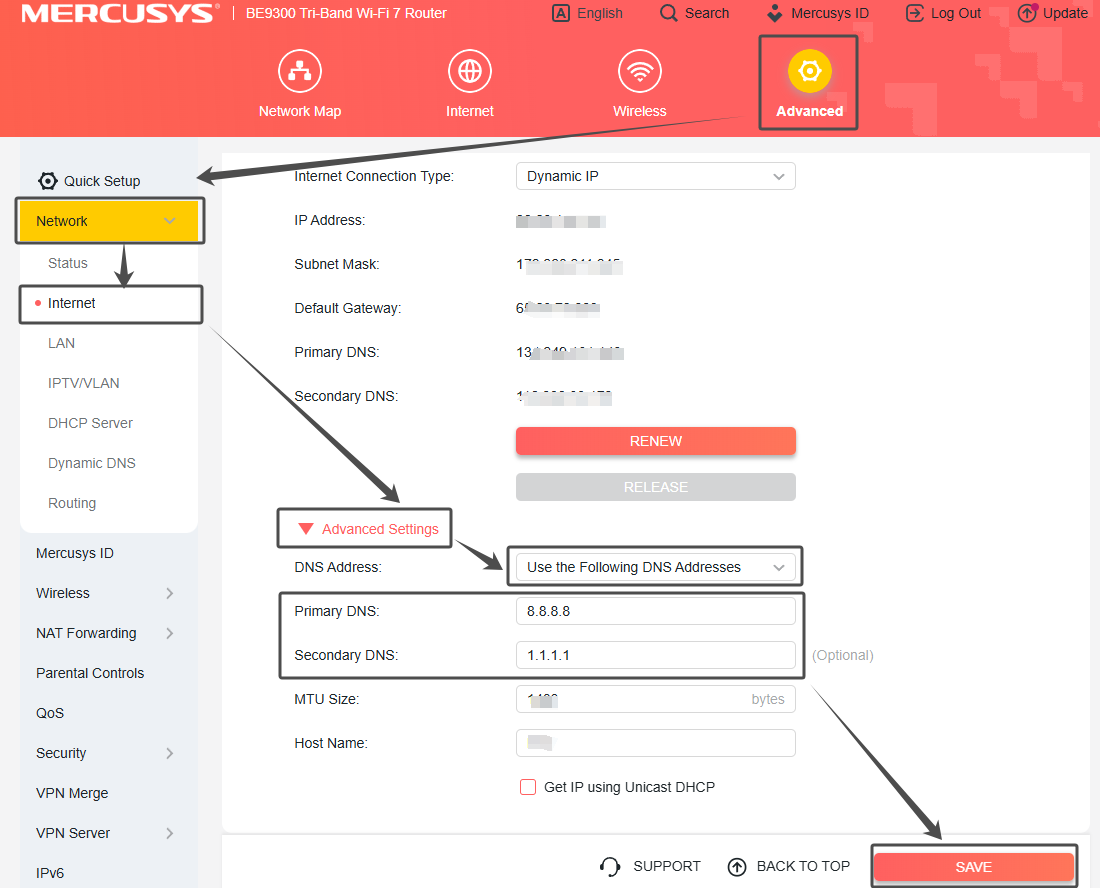
Step 2. Navigate to Advanced > Network > Internet page. Click on Advanced Settings > DNS Address option, then select the option labeled Use the following DNS addresses. Once selected, the Primary DNS and Secondary DNS fields will be displayed. Enter the DNS addresses (e.g., 8.8.8.8 and 1.1.1.1). Click SAVE to apply the settings.
For reliable performance, we recommend using 8.8.8.8 for the Primary DNS and 1.1.1.1 for the Secondary DNS.
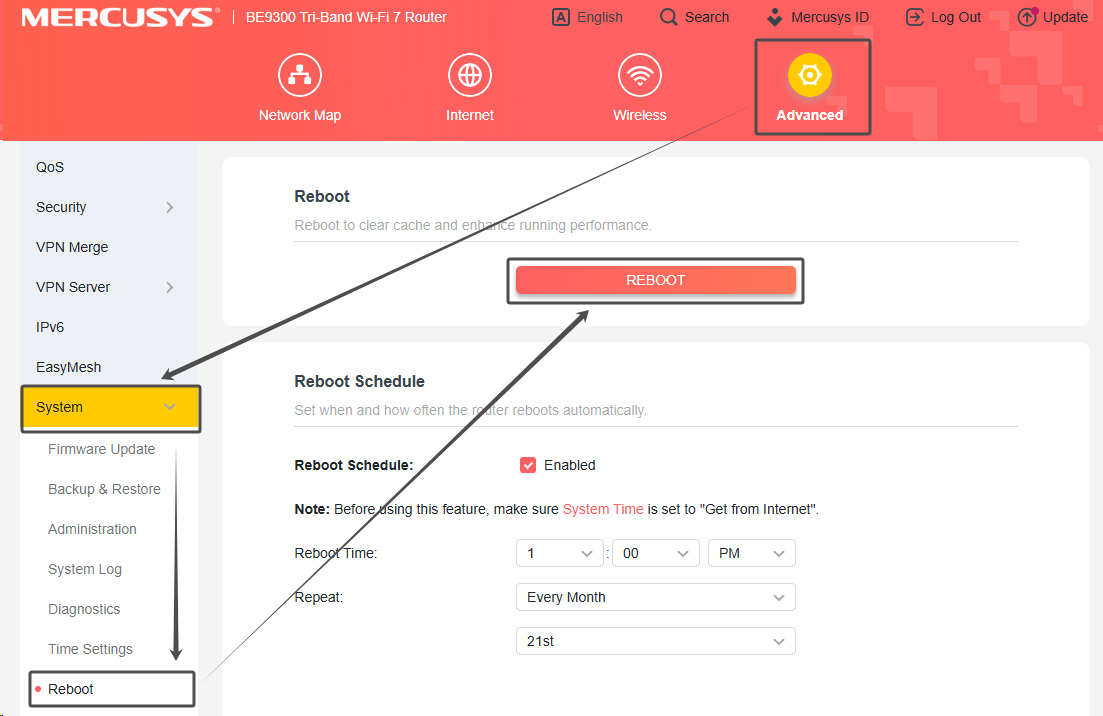
Step 3. Reboot the router for the new DNS settings to take effect.
Go to Advanced > System > Reboot, click REBOOT.
Scenario 2: For 5G/4G Routers
Step 1. Connect your computer to the MERCUSYS 5G/4G Router, then open a browser and visit mwlogin.net or 192.168.1.1 to log in to the router's web management page.
For details, please refer to How to log in to the web management page of MERCUSYS 5G/4G Router & Mobile Wi-Fi
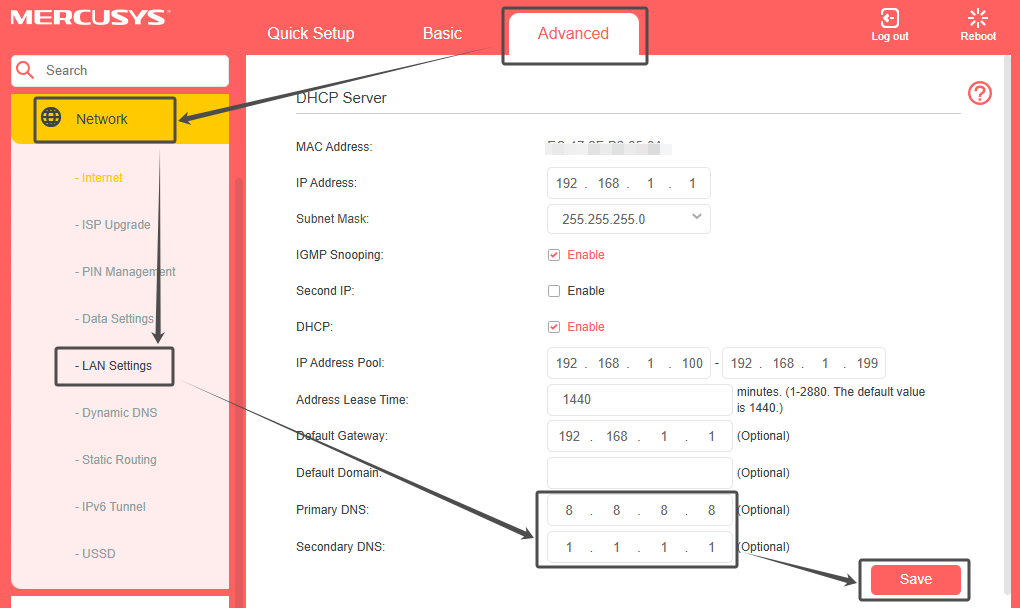
Step 2. Go to Advanced > Network > LAN Settings. On this page, you will see the fields for Primary DNS and Secondary DNS. Enter the DNS addresses (e.g., 8.8.8.8 and 1.1.1.1). Click SAVE to apply the settings.
For reliable performance, we recommend using 8.8.8.8 for the Primary DNS and 1.1.1.1 for the Secondary DNS.
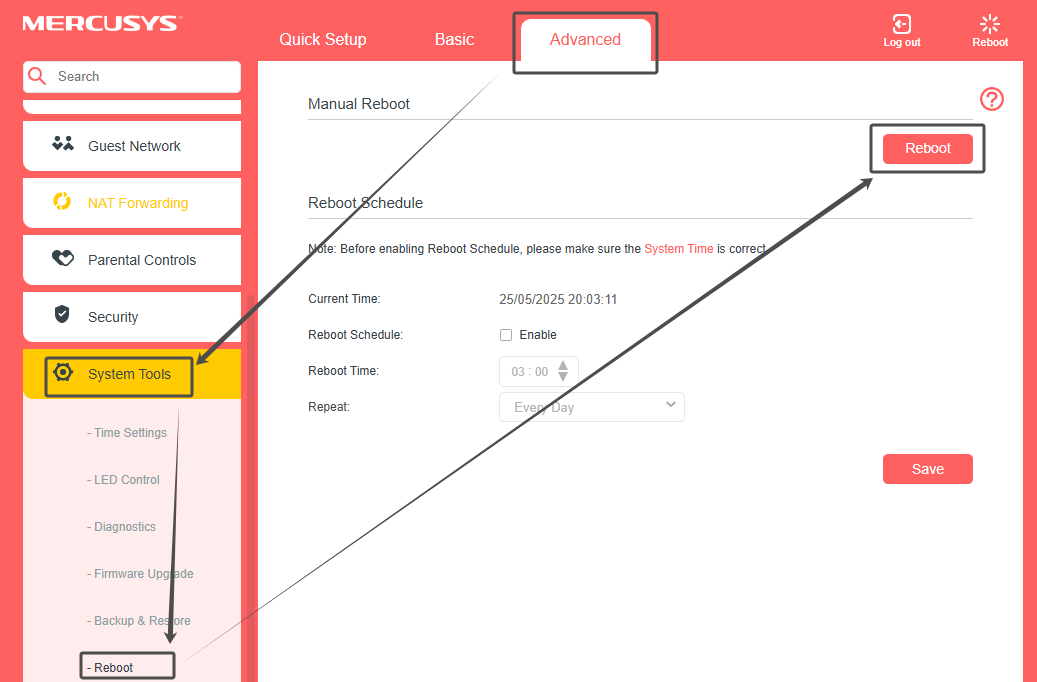
Step 3. Go to Advanced > System Tools > Reboot, click Reboot.
Get to know more details of each function and configuration please go to Support Center to download the manual of your product.