How to set up the Mercusys ADSL modem router to connect to the internet
MW300D modem router, compatible with ADSL2+, ADSL2 and ADSL connections, combines ADSL2+ modem and NAT Router in one device to provide fast Wi-Fi.
Before you start:
Make sure your internet service provided by your internet service provider (ISP) is available and get the internet information prepared. You'll usually need an internet service username and password, given to you by your ISP when you first signed up with them. If there is any problem, please contact your ISP.
Follow the steps below to set up your modem router.
1. Connect the hardware according to the diagram below, and wait about 1 to 2 minutes, then verify that the Power, ADSL and Wi-Fi LEDs are on.
Note: If you don’t need the phone service, just directly connect the modem router to the phone jack with the provided phone cable.

2. Connect your computer to the modem router (Wired or Wireless).
Wired: Connect the computer to a LAN port on your modem router with an Ethernet cable.
Wireless: Connect your computer or smart device to the modem router wirelessly. The default SSID (Network Name) is on the modem router’s label.
3. Launch a web browser and enter http://mwlogin.net or 192.168.1.1 in the address bar. Use admin (all lowercase) for both username and password, and then click Login.
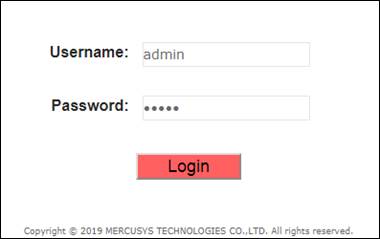
3. Click NEXT to start Quick Start wizard to quickly set up the modem router.

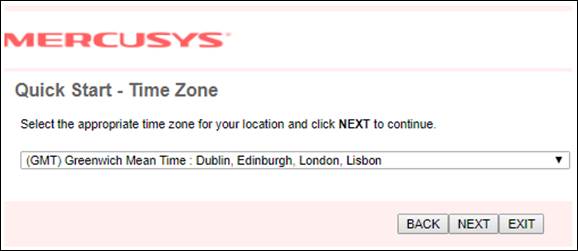
4. Configure the time zone for the modem router, and then click NEXT.
5. Select your country and ISP from the dropdown list. Then select your ISP Connection type and complete the corresponding settings with the information provided by your ISP and click NEXT, or you can select Other and enter the information provided by your ISP. Here we take PPPoE/PPPoA mode for example.

6. Configure the wireless settings. By default no password is set, you can set the authentication type and password for your wireless network, and click NEXT.

7. Click SAVE to finish the Quick Start.

8. Now your modem router is set up. Go to the Status page to check the WAN IP, and make sure the Status is Up.

Note:
1. If WAN IP address is 0.0.0.0, please contact your Internet Service Provider to verify whether your configuration info provided is correct.
2. If you still cannot access websites with WAN IP address, go to Interface Setup > LAN and change the DNS server to Use User Discovered DNS Server Only and set to 8.8.8.8 and 8.8.4.4, then try again.
