How to set up the MERCUSYS camera
Introduction
This article aims to provide step-by-step instructions for configuring the camera effectively.
Requirements
Download the MERCUSYS App by visiting the Google Play Store, the App Store, or by scanning the QR code.

Make sure you have a MERCUSYS ID. If you don't, tap "Sign Up" to create one in the MERCUSYS App.
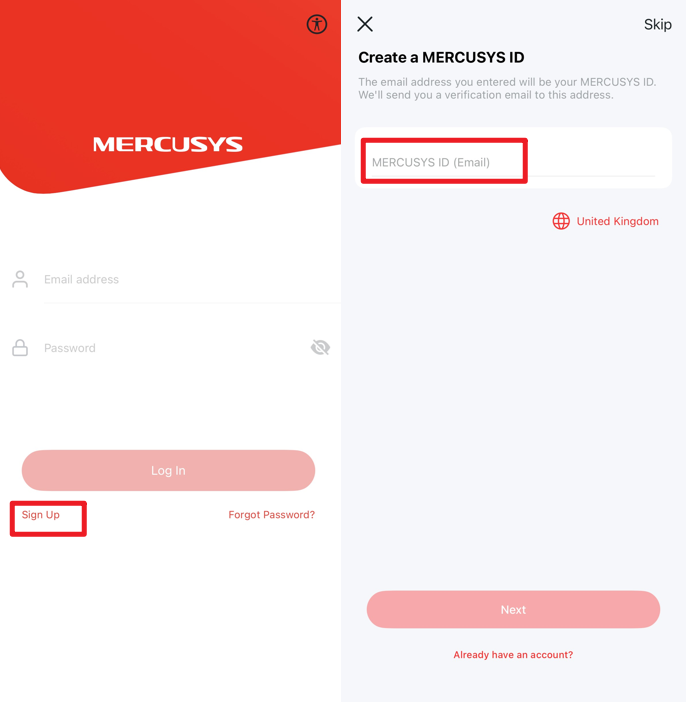
Power on the camera and check that the light indicates it is in configuration mode (refer to the user guide for details). Most cameras show this with a blinking red and green light.
Configuration
You can follow the steps below to configure the camera, which are the same as those in the App guide, we take MC210 as an example.
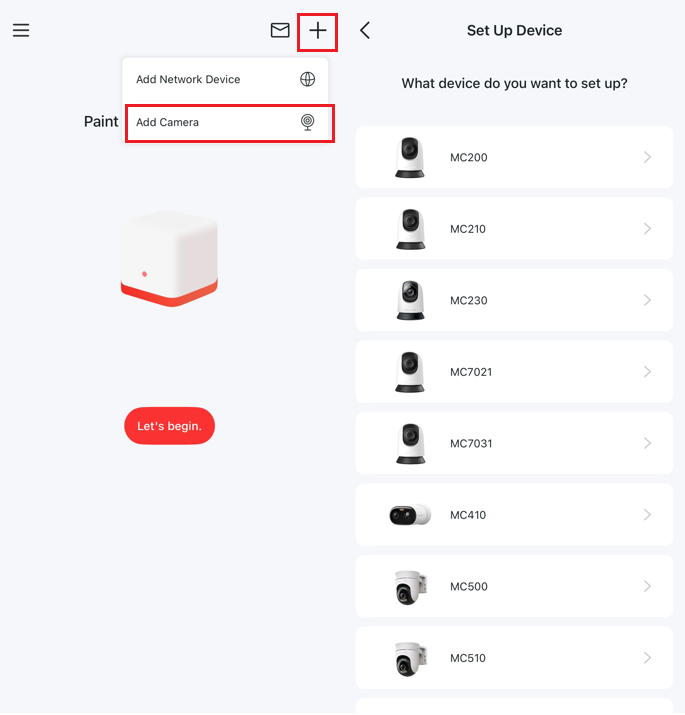
Step1. In the App, tap the icon + > Add Camera and then follow the steps to choose your device model.
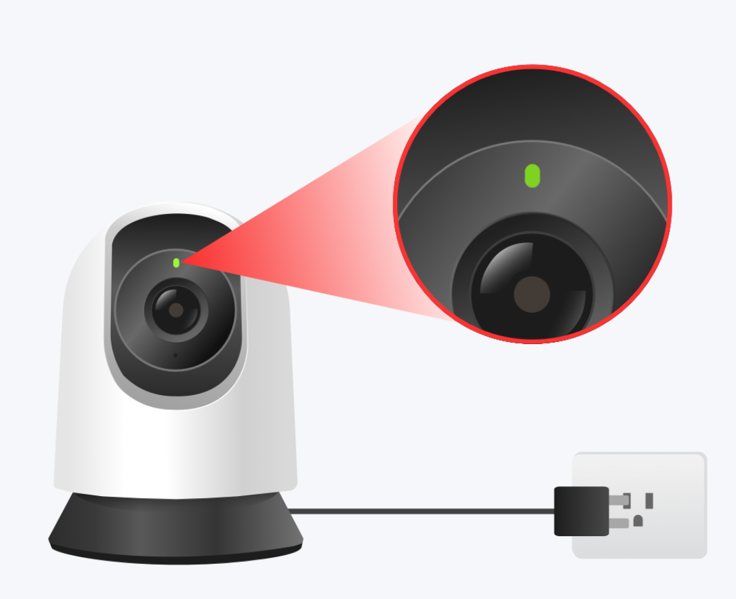
Step 2. After the installation of your MERCUSYS Camera is complete, please connect it to a power source. Wait for the device to start up and automatically enter the configuration-ready state, which typically takes about 30 seconds.
You can determine whether the device has entered the configuration-ready state based on the status of its indicator light. Once in this state, most MERCUSYS cameras will display a red-green blinking pattern, indicating that you can proceed to the next step. Otherwise, you will need to press and hold the camera’s reset button for more than 5 seconds to reset it.
Tips:
- Throughout the configuration process, please keep your mobile phone or tablet close to the MERCUSYS device.
- The indicator light rules and reset methods may vary among different models. For more information, please refer to the device's QIG (Quick Installation Guide).
Step 3. Connect to the camera via Wi-Fi or Bluetooth following the App setup guide to proceed with the next steps.
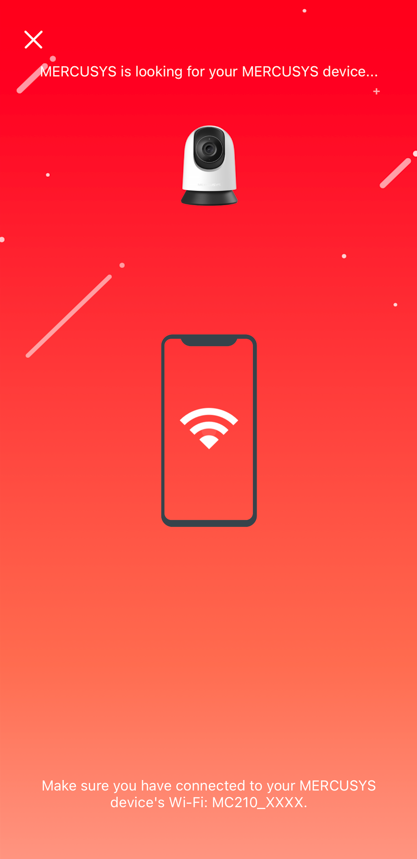
If the App page prompts you to connect to the camera's Wi-Fi, please open your phone or tablet's Wi-Fi settings and connect to your camera's network: MCXXX_XXXX. Then return to the App.

Step 4. It will begin searching for your camera, which may take a minute or two.
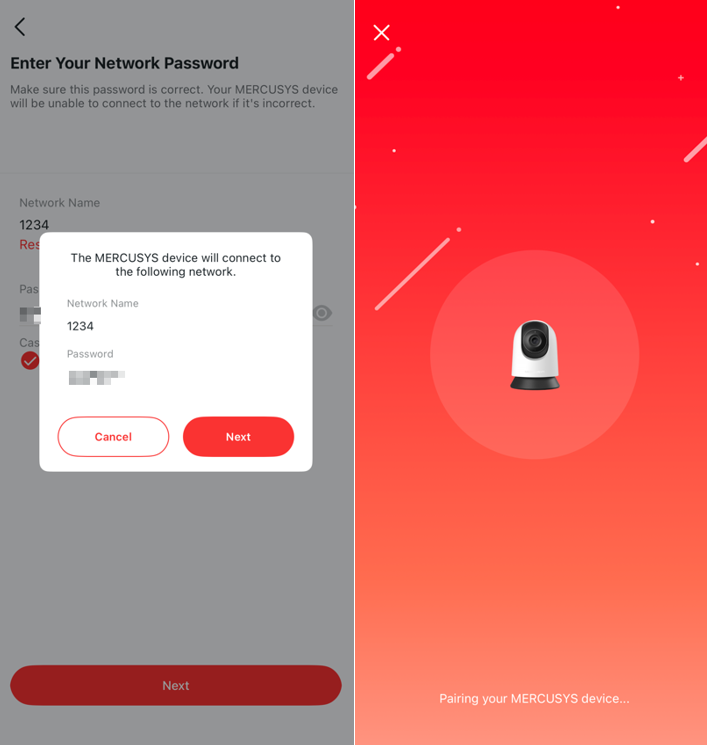
Step 5. Once the camera is found, connect it to your home Wi-Fi network and enter the password.

Step 6. Click "Next" in the pop-up window to begin pairing your camera. Ensure the LED remains solid throughout the process.
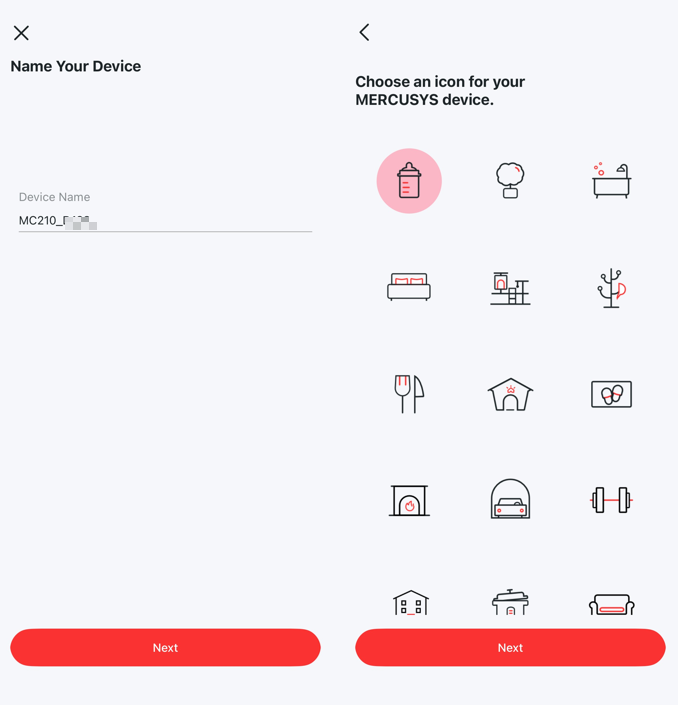
Step 7. Once pairing is complete, assign a unique name to your camera and specify its location for easy identification. Click "Next" to finish the setup.
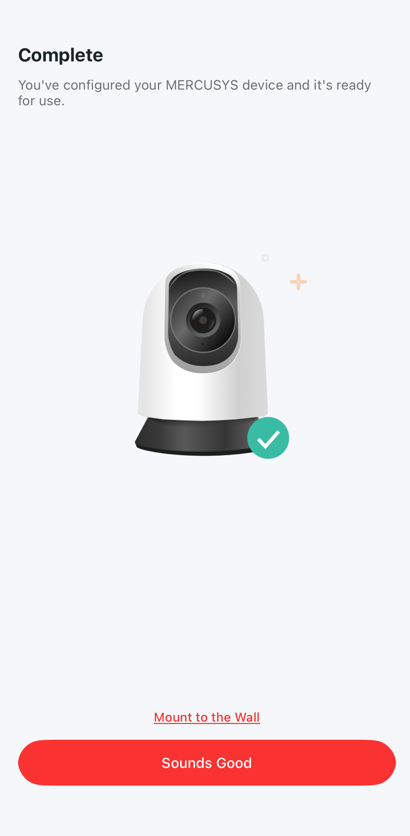
Step 8. The "Complete" page indicates that your camera has been successfully added. Tap "Sounds Good" to start using it.
QA
Q1: What should I do if I fail to configure a MERCUSYS camera?
A: You can refer to the FAQ What should I do if I fail to configure MERCUSYS camera?.
Q2: How do I turn on or off the green LED on the front of the MERCUSYS camera?
A: If you want to turn on or off the green LED on the front of the MERCUSYS camera, navigate to your camera’s Device Settings page on the MERCUSYS App and look for the Status LED option.
Q3: Can I use the MERCUSYS camera without the MERCUSYS App and without an account?
A: No, you have to use the MERCUSYS camera with the MERCUSYS App with an account.
Q4: Can the MERCUSYS camera be used and activated without a Wi-Fi network?
A: During the configuration process, MERCUSYS cameras must be connected to a wireless network. Once configured, MERCUSYS cameras can function even when disconnected from the router's network during daily use.
The SD card recording function, including detection recording and 24/7 recording, will continue to work. However, please note that without a Wi-Fi network connection, you cannot view the camera's live feed, playback videos, or receive detection notifications through the MERCUSYS App.
Q5: How do you change the wireless network?
A: Currently, the only way to change wireless networks is to reset and reconfigure the camera.
Get to know more details of each function and configuration please go to Support Center to download the manual of your product.